Table of contents
Selenium remains the workhorse for browser automation in Python, Java, and beyond — but a single outbound IP will get rate-limited or challenged the moment you scale. Proxies let you assign a dedicated exit address (or a rotating pool) to each browser session so your tests, scrapers, and multi-account workflows look like normal traffic. This guide covers HTTP and SOCKS authentication, Chrome options, rotating versus sticky sessions, and the failure modes that burn the most time.
If you already automate with Node, the companion guide How to Use Proxies with Puppeteer covers the same ideas in a Chromium/Puppeteer stack. For choosing the right proxy type before you wire Selenium, start with Residential vs ISP vs Datacenter Proxies.
Why Selenium needs proxies
Every Selenium-driven Chrome or Firefox instance exits through whatever IP the host machine has. Run a few dozen requests against a login wall, a marketplace, or a social platform and that IP starts collecting friction: CAPTCHAs, soft blocks, hard 403s, or account locks tied to the network fingerprint. Proxies break that 1:1 mapping. They let you:
- Spread load across many exit IPs so no single address looks abusive.
- Pin a session to one sticky IP when an account expects a stable network (logins, carts, creator tools).
- Appear in a specific country or city for geo-gated content and localization tests.
- Isolate browser profiles from each other so multi-account work does not cross-contaminate.
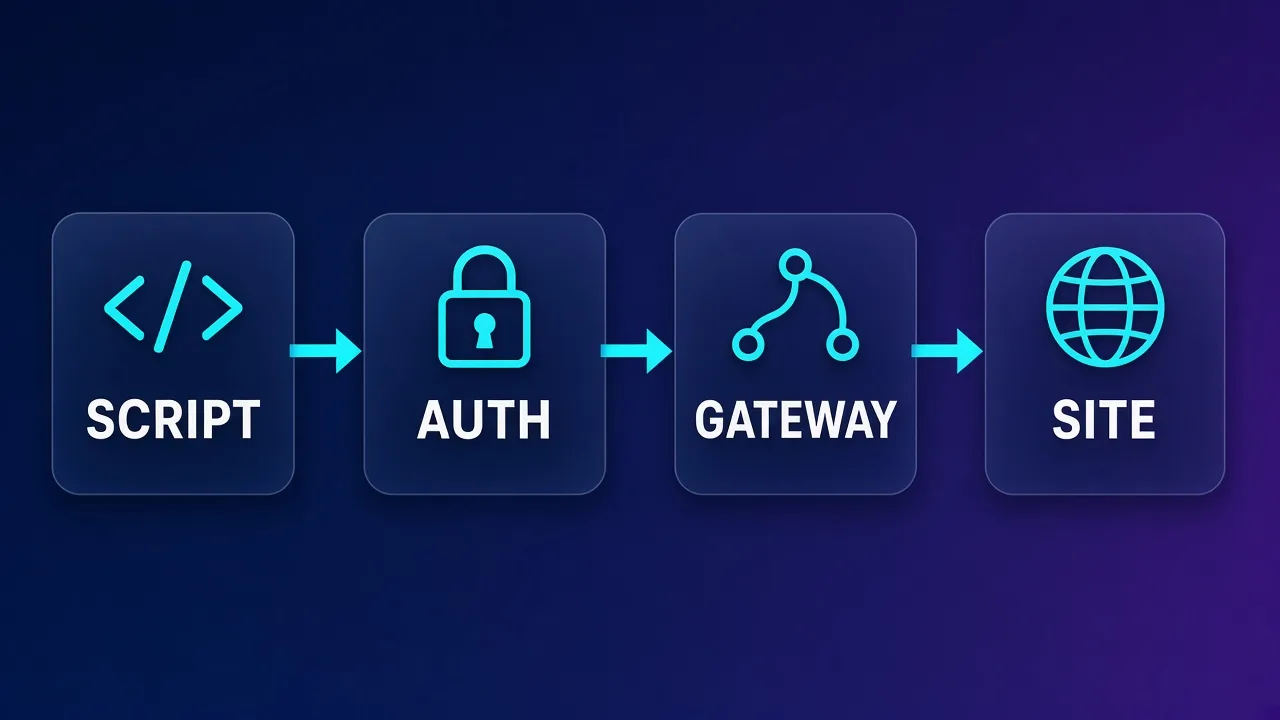
Selenium itself does not rotate IPs. You choose a proxy endpoint (or a pool gateway), attach it to the browser at launch or via an extension, and let the provider handle rotation or stickiness.
Pick the proxy type before the code
Datacenter proxies are fast and cheap for volume scraping of tolerant sites. Sticky ISP or residential proxies fit account-sensitive work (logins, social, marketplaces). Match the product to the risk — wiring Selenium perfectly will not save a burned datacenter IP on a strict platform.
Proxy protocols Selenium can use
Providers usually expose one or more of these protocols. Selenium and Chromium do not treat them identically, so choose with the browser constraints in mind.
| Protocol | Auth style | Chrome support | Typical use |
|---|---|---|---|
| HTTP / HTTPS | user:pass or IP allowlist | Native via --proxy-server; auth often needs extension or CDP | General web automation, scraping APIs behind browser |
| SOCKS5 | user:pass or IP allowlist | Supported as socks5://; auth is the hard part | Full TCP tunneling, mixed protocols |
| SOCKS4 | Usually IP allowlist | Limited; rarely worth it in 2026 | Legacy only |
Most modern residential and ISP products give you an HTTP(S) gateway and a SOCKS5 gateway on different ports. Prefer HTTP for Chrome unless you specifically need SOCKS. Firefox/geckodriver handles authenticated SOCKS more cleanly than Chrome in some setups.
Chrome options: the baseline setup
The cleanest starting point is Chromium's --proxy-server flag. It works for IP-allowlisted proxies (no username/password) and for gateways that authenticate by source IP.
from selenium import webdriver
from selenium.webdriver.chrome.options import Options

options = Options()
options.add_argument("--proxy-server=http://GATE.example.com:8000")
options.add_argument("--disable-dev-shm-usage")
options.add_argument("--no-sandbox")  # containers only; skip on desktop

driver = webdriver.Chrome(options=options)
driver.get("https://httpbin.org/ip")
print(driver.page_source)
driver.quit()
Replace the host and port with your provider's endpoint. For SOCKS5 without credentials:
options.add_argument("--proxy-server=socks5://GATE.example.com:1080")
Confirm the exit IP with a simple echo endpoint before you hit a real target. If the page still shows your home or VPS IP, the flag was ignored, mistyped, or overridden by a system PAC file.
Authenticated proxies break naive Chrome flags
Chrome does not accept http://user:pass@host:port in --proxy-server the way curl does. Passing credentials in the URL usually fails silently or prompts a native auth dialog that Selenium cannot fill. Use an auth extension, CDP Network auth, or a local forwarder.
Authenticated HTTP proxies with Chrome
Username/password proxies are the default for residential and ISP products. Selenium + Chrome needs an extra layer. Three practical patterns:
1. Manifest V3 / MV2 proxy auth extension
Package a tiny Chrome extension that sets the proxy and answers webRequest.onAuthRequired. Load it with --load-extension. This is still the most portable approach across Selenium 4 versions.
import zipfile, os
from selenium import webdriver
from selenium.webdriver.chrome.options import Options

PLUGIN_DIR = "/tmp/proxy_auth_plugin"
os.makedirs(PLUGIN_DIR, exist_ok=True)

manifest = """{
  "version": "1.0.0",
  "manifest_version": 2,
  "name": "Proxy Auth",
  "permissions": ["proxy", "tabs", "unlimitedStorage", "storage",
                  "<all_urls>", "webRequest", "webRequestBlocking"],
  "background": {"scripts": ["background.js"]},
  "minimum_chrome_version": "22.0.0"
}"""

background = """
var config = {
  mode: "fixed_servers",
  rules: {
    singleProxy: {scheme: "http", host: "%s", port: parseInt(%s)},
    bypassList: ["localhost"]
  }
};
chrome.proxy.settings.set({value: config, scope: "regular"}, function(){});
function callbackFn(details) {
  return {authCredentials: {username: "%s", password: "%s"}};
}
chrome.webRequest.onAuthRequired.addListener(
  callbackFn, {urls: ["<all_urls>"]}, ["blocking"]
);
""" % ("GATE.example.com", "8000", "USER", "PASS")

with open(f"{PLUGIN_DIR}/manifest.json", "w") as f:
    f.write(manifest)
with open(f"{PLUGIN_DIR}/background.js", "w") as f:
    f.write(background)

plugin_path = "/tmp/proxy_auth_plugin.zip"
with zipfile.ZipFile(plugin_path, "w") as zp:
    zp.write(f"{PLUGIN_DIR}/manifest.json", "manifest.json")
    zp.write(f"{PLUGIN_DIR}/background.js", "background.js")

options = Options()
options.add_extension(plugin_path)
driver = webdriver.Chrome(options=options)
driver.get("https://httpbin.org/ip")
Notes: Manifest V2 still works in many Chromium builds used by ChromeDriver, but Google is phasing it out. If your Chrome build rejects MV2, switch to a Manifest V3 service-worker variant or use CDP auth below. Never commit real credentials into the extension source — inject them at runtime from env vars.
2. CDP Fetch auth (Selenium 4)
Selenium 4 exposes Chrome DevTools Protocol. You can enable Fetch and fulfill auth challenges without an extension:
from selenium import webdriver
from selenium.webdriver.chrome.options import Options

options = Options()
options.add_argument("--proxy-server=http://GATE.example.com:8000")
driver = webdriver.Chrome(options=options)

driver.execute_cdp_cmd("Network.enable", {})
driver.execute_cdp_cmd("Network.setExtraHTTPHeaders", {"headers": {}})
# Prefer Fetch domain for auth challenges:
driver.execute_cdp_cmd("Fetch.enable", {"handleAuthRequests": True})

# Then in a loop / listener, respond to AuthRequired with:
# driver.execute_cdp_cmd("Fetch.continueWithAuth", {
#   "requestId": request_id,
#   "authChallengeResponse": {
#     "response": "ProvideCredentials",
#     "username": "USER",
#     "password": "PASS",
#   },
# })
CDP auth needs an event loop or BiDi listener to catch Fetch.authRequired. Libraries like selenium-wire (maintenance status varies) and custom BiDi wrappers wrap this for you. For long-lived production bots, a small local forwarder is often simpler.
3. Local forwarder (tiny proxy in front of the real one)
Run a local HTTP proxy that injects credentials toward the upstream gateway, and point Chrome at http://127.0.0.1:PORT with no auth. Tools such as proxy.py, mitmproxy, or a 20-line asyncio forwarder work. This keeps credentials out of the browser and avoids extension/CDP fragility.
SOCKS5 authentication realities
Chrome's --proxy-server=socks5://... flag does not reliably pass username/password. Common workarounds:
- Use an HTTP gateway from the same provider instead of SOCKS when Chrome is the browser.
- Allowlist your VPS/server IP at the provider and skip credentials.
- Run a local SOCKS-to-HTTP bridge that authenticates upstream.
- Use Firefox + geckodriver, which accepts SOCKS credentials via profile preferences more consistently.
# Firefox authenticated SOCKS example (geckodriver)
from selenium import webdriver
from selenium.webdriver.firefox.options import Options
from selenium.webdriver.common.proxy import Proxy, ProxyType

options = Options()
proxy = Proxy()
proxy.proxy_type = ProxyType.MANUAL
proxy.socks_proxy = "GATE.example.com:1080"
proxy.socks_version = 5
# Credentials often set via profile prefs:
profile_prefs = {
    "network.proxy.type": 1,
    "network.proxy.socks": "GATE.example.com",
    "network.proxy.socks_port": 1080,
    "network.proxy.socks_version": 5,
    "network.proxy.socks_username": "USER",
    "network.proxy.socks_password": "PASS",
}
for k, v in profile_prefs.items():
    options.set_preference(k, v)

driver = webdriver.Firefox(options=options)
Preference names and support vary by Firefox version — always verify the exit IP after launch.
Rotating vs sticky sessions
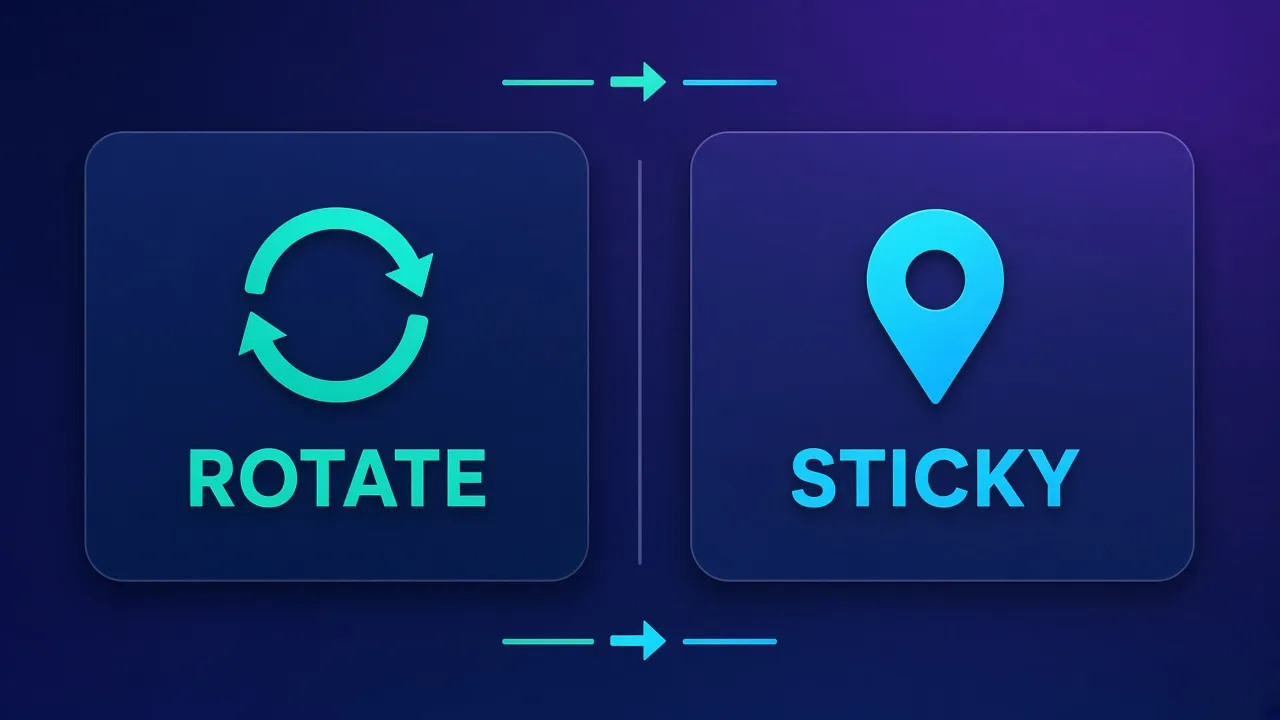
Providers expose two session modes. Selenium code is almost the same; the gateway username or session ID decides the behavior.
| Mode | Exit IP behavior | Best for | Watch-outs |
|---|---|---|---|
| Rotating | New IP every request or every short TTL | Broad crawling, SERP, price checks | Logins and carts break if IP changes mid-flow |
| Sticky / session | Same IP for N minutes (provider lease) | Account login, checkout, social warm-up | Do not reuse one sticky IP across many unrelated accounts |
Sticky sessions are usually selected by embedding a session ID in the proxy username, for example user-session-abc123 or user_session-abc123 — check your provider's exact syntax. Keep that session string stable for the life of one Selenium driver, then mint a new one for the next account or browser profile.
For multi-account social or marketplace work, pair sticky ISP/residential proxies with separate browser profiles (or an anti-detect browser). See Do You Need Proxies with Anti-Detect Browsers? for how those layers fit together.
Per-driver isolation patterns
One long-lived driver with a rotating gateway is fine for anonymous crawl jobs. Account work needs isolation:
- One driver per account — launch Chrome with its own user-data-dir, sticky proxy session, and cookies.
- One sticky session ID per driver — never share the session string across profiles.
- Clean teardown —
driver.quit()and delete temp profiles so fingerprints do not leak into the next run. - Concurrency caps — match thread/process count to your proxy plan's concurrent session limits.
import uuid
from selenium import webdriver
from selenium.webdriver.chrome.options import Options

def make_driver(proxy_host, proxy_port, user, password):
    session = uuid.uuid4().hex[:12]
    # Example sticky username pattern — confirm with your provider docs
    sticky_user = f"{user}-session-{session}"
    options = Options()
    options.add_argument(f"--user-data-dir=/tmp/chrome-{session}")
    # Attach auth via your chosen method (extension / CDP / forwarder)
    # using sticky_user + password against proxy_host:proxy_port
    return webdriver.Chrome(options=options), session
Common failures and how to fix them
These are the issues that show up again and again in Selenium + proxy setups:
- Exit IP unchanged — typo in
--proxy-server, system proxy override, or extension not loaded. Verify with httpbin/ipify before blaming the provider. - Auth dialog / hung page — Chrome waiting for credentials you never supplied. Switch to extension, CDP, allowlist, or forwarder.
- ERR_PROXY_CONNECTION_FAILED — wrong host/port, provider outage, or firewall blocking outbound to the gateway.
- ERR_TUNNEL_CONNECTION_FAILED — HTTPS CONNECT failed; often bad credentials or a gateway that expects SOCKS while you sent HTTP.
- Intermittent 407 — credentials wrong on some threads, or sticky username malformed so the gateway rejects the session.
- Login loops after IP change — you used rotating mode on an account flow. Switch to sticky for that driver.
- WebRTC / DNS leaks — browser still reveals the real IP via WebRTC or resolves DNS locally. Disable WebRTC in prefs or use an anti-detect profile; prefer provider-side remote DNS when available.
- Selenium Grid / remote WebDriver — proxy flags must be set on the node that launches the browser, not only on the client. Capabilities must carry
goog:chromeOptionsargs through to the node.
Smoke-test checklist
Before production: (1) confirm exit IP, (2) confirm geo if required, (3) run a short login or form flow on sticky mode, (4) watch for 407/tunnel errors under concurrency, (5) confirm cookies persist across page loads on the same driver.
Provider options that work well with Selenium
You need a gateway that supports username/password (or IP allowlist), sticky sessions for account work, and enough concurrency for your driver pool. Live cards below reflect current Proxyaxis catalog data — open them for plans and product lines rather than relying on remembered list prices.
Bright Data
Broad residential, ISP, and datacenter lines with session control suited to Selenium fleets. Strong when you need geo targeting and sticky leases at scale.
Bright Data
Bright Data remains the most complete data-collection platform money can buy. No competitor matches its combination of network scale, targeting granularity, and compliance tooling — and for enterprise teams whose revenue depends on reliable data, that completeness justifies the premium. The trade-offs are real: it is one of the priciest providers per gigabyte, the interface overwhelms newcomers, and KYC verification adds friction before you can route a single request. Smaller projects will get better value from Decodo or IPRoyal. But if you need city-level residential targeting at scale, a managed unblocker for the hardest targets, and audit-ready compliance, Bright Data is the default — and our highest-rated proxy provider overall.
Oxylabs
Enterprise-oriented residential and ISP gateways with clear session syntax — a solid fit when compliance and support matter as much as raw throughput.

Oxylabs
Oxylabs is the enterprise provider that gets the fundamentals right. The network is huge and well-maintained, the scraper APIs are genuinely best-in-class, and the documentation and SDKs make integration faster than almost any competitor. What sets it apart from Bright Data is service: dedicated account managers, responsive support, and cleaner tooling mean less time fighting the platform and more time shipping. The cost is higher entry pricing, and the deepest discounts favor high-volume commitments. For serious commercial data operations that can justify the spend, Oxylabs is a top-two choice and frequently the one teams stay with long-term.
Decodo
Often chosen for straightforward sticky residential/ISP setups without enterprise sales overhead.

Decodo
Decodo offers the best price-to-performance ratio in the industry. It delivers roughly 90% of what the enterprise leaders provide — high success rates, a large clean pool, sticky sessions, an unblocker — at a fraction of their cost. The dashboard is the friendliest of any major provider, the 14-day money-back guarantee removes the risk of trying it, and support actually responds. The main gaps are enterprise-grade compliance tooling and the very deepest targeting, neither of which most teams need. For startups, solo developers, and any team that wants professional results without enterprise pricing, Decodo is our top value pick and an easy recommendation.
SOAX
Flexible targeting and session controls that map cleanly onto per-driver sticky usernames.

SOAX
SOAX is the targeting specialist. City- and ISP-level selection on every plan — not locked behind premium tiers — is genuinely rare, and the continuously cleaned pool keeps success rates high where it matters. It is not the fastest network, the interface could use a refresh, and SOCKS5 coverage is uneven. Those are real but minor gripes against a provider that nails the fundamentals of precision and reliability. For ad verification, localized market research, and social-media work that depends on appearing in an exact location, SOAX is one of the best mid-market options available.
For a deeper head-to-head on the two largest enterprise platforms, see Bright Data vs Oxylabs. Product pages such as Bright Data and Oxylabs stay updated as offerings change.
Putting it together: a practical recipe
A durable Selenium + proxy setup usually looks like this:
- Choose proxy type (datacenter vs ISP vs residential) from the risk profile of the target.
- Decide rotating vs sticky per job type — never mix them on the same driver mid-flow.
- Pick an auth strategy: IP allowlist if you have a stable server IP; otherwise extension, CDP, or local forwarder.
- Launch one Chrome per account/profile with its own user-data-dir and sticky session ID.
- Smoke-test exit IP and a real flow before scaling concurrency.
- Log proxy errors (407, tunnel failures) separately from site errors so you can tell provider issues from target defenses.
Keep credentials in environment variables or a secret manager. Rotate passwords when a log leaks. Cap concurrency to your plan so you do not trigger provider-side throttling that looks like site blocking.
Who this setup is (and is not) for
Good fit: QA teams geo-testing checkout, scrapers that need a real browser, agencies running multiple client accounts with sticky ISP, and developers moving from local Selenium scripts to a VPS fleet.
Poor fit: Ultra-high-volume HTTP API scraping where a headless browser is overkill (use an HTTP client + rotating proxies instead), or workflows that already run inside an anti-detect browser with its own proxy layer — do not double-proxy unless you intend to.
Conclusion
Using proxies with Selenium is less about exotic APIs and more about three decisions: protocol, authentication method, and rotating versus sticky sessions. Chrome's missing native user/pass support is the main footgun — solve it once with an extension, CDP, allowlist, or forwarder, then treat each driver as an isolated browser with its own sticky exit IP. Verify the exit address every time you change providers or launch flags, and match proxy type to the sensitivity of the site you automate.
From here, deepen the stack with the Puppeteer twin guide, the residential vs ISP vs datacenter comparison, and live provider cards above so pricing and inventory stay current as you scale.
Frequently asked questions
Not via a simple user:pass URL in --proxy-server. Chrome ignores or mishandles credentials in that flag. Use a proxy-auth extension, CDP Fetch auth, IP allowlisting, or a local forwarder that injects credentials upstream.
Rotating gateways change the exit IP frequently—good for broad crawling. Sticky sessions keep one IP for a lease window, which you need for logins, carts, and account warm-up. Pick the mode in the proxy username or session ID, not in Selenium itself.
Common causes are a typo in the flag, a system PAC/proxy override, the flag not reaching a remote Grid node, or WebRTC leaking the real address. Verify with an IP echo site and disable WebRTC if needed.
Prefer HTTP/HTTPS gateways for Chrome. SOCKS5 works for IP-allowlisted endpoints, but authenticated SOCKS is unreliable with Chromium flags. Firefox handles SOCKS credentials more consistently if you truly need SOCKS.
Launch one driver per account with its own user-data-dir and a unique sticky session ID in the proxy username. Do not share session strings across profiles, and quit drivers cleanly between runs.
Connection failed usually means bad host/port, firewall blocks, or provider outage. Tunnel failed often means HTTPS CONNECT was rejected—wrong credentials, wrong protocol (HTTP vs SOCKS), or an expired sticky session.
Not always. Datacenter proxies work for tolerant sites and high-volume crawls. Sticky ISP or residential proxies are better for logins and platforms with strict anti-abuse. Match proxy type to target risk before optimizing Selenium code.
Yes, but the proxy configuration must apply on the node that launches the browser. Pass goog:chromeOptions arguments through desired capabilities, and smoke-test the exit IP from a session on that node.