Table of contents
A proxy that looks fine on paper can still be slow, leaky or in the wrong country. The only way to know is to test it, and a proper test takes less time than most people expect. With a terminal, a few lines of Python and a browser, you can check speed, anonymity, leaks and geo accuracy in under fifteen minutes.
This guide walks through each check step by step, explains what the results mean, and shows how to turn the whole process into a repeatable script you can run whenever you evaluate a new provider or a new batch of IPs.
Why testing proxies matters
Proxy quality varies a lot, even inside a single provider. Two IPs from the same pool can have very different latency, reputation and location accuracy, and a configuration mistake on your side can expose your real IP even when the proxy itself is perfect. Testing protects you from three expensive outcomes:
- Wasted spend. Paying for bandwidth that times out or lands in the wrong country.
- Blocked work. Using IPs that are already flagged by your target, which leads to CAPTCHAs, errors and bans. Our guide on why proxies get blocked covers the common causes.
- Exposure. Leaking your real IP or location through DNS or WebRTC, which defeats the point of using a proxy at all.
A short, consistent test routine also gives you something to compare. When you run the same checks on two providers, you can see the difference in numbers rather than marketing claims.
What a complete proxy test covers
A useful test answers four questions. Each one maps to a section below.
| Check | Question it answers | Tools |
|---|---|---|
| Connectivity and speed | Does the proxy work, and how fast is it? | curl timing, Python |
| Anonymity | Which IP does the target see, and does it reveal a proxy? | IP echo services, header inspection |
| Leaks | Does anything bypass the proxy and expose you? | DNS and WebRTC leak test pages |
| Geo accuracy | Is the IP really in the location you paid for? | IP geolocation lookups |
Before starting, have your proxy details ready: host, port, protocol (HTTP or SOCKS5) and credentials. If you're unsure which protocol to use, our comparison of SOCKS5 vs HTTP proxies explains the difference.
Step 1: Check that the proxy connects
Start with the simplest possible test: send one request through the proxy and see which IP comes back. If this fails, nothing else matters.
curl -x http://USERNAME:PASSWORD@PROXY_HOST:PORT https://api.ipify.orgFor a SOCKS5 proxy, change the scheme. Using socks5h makes the proxy resolve hostnames, which also prevents DNS leaks from curl itself:
curl -x socks5h://USERNAME:PASSWORD@PROXY_HOST:PORT https://api.ipify.orgThe output should be a single IP address that is not your own. If you get your real IP, the proxy isn't being used. If you get an error, read it carefully:
- 407 Proxy Authentication Required: wrong username or password, or your IP isn't whitelisted.
- Connection refused or timed out: wrong host or port, a firewall in the way, or the proxy is down.
- SSL or handshake errors: often a protocol mismatch, such as using an HTTP scheme for a SOCKS-only endpoint.
Step 2: Measure speed and latency
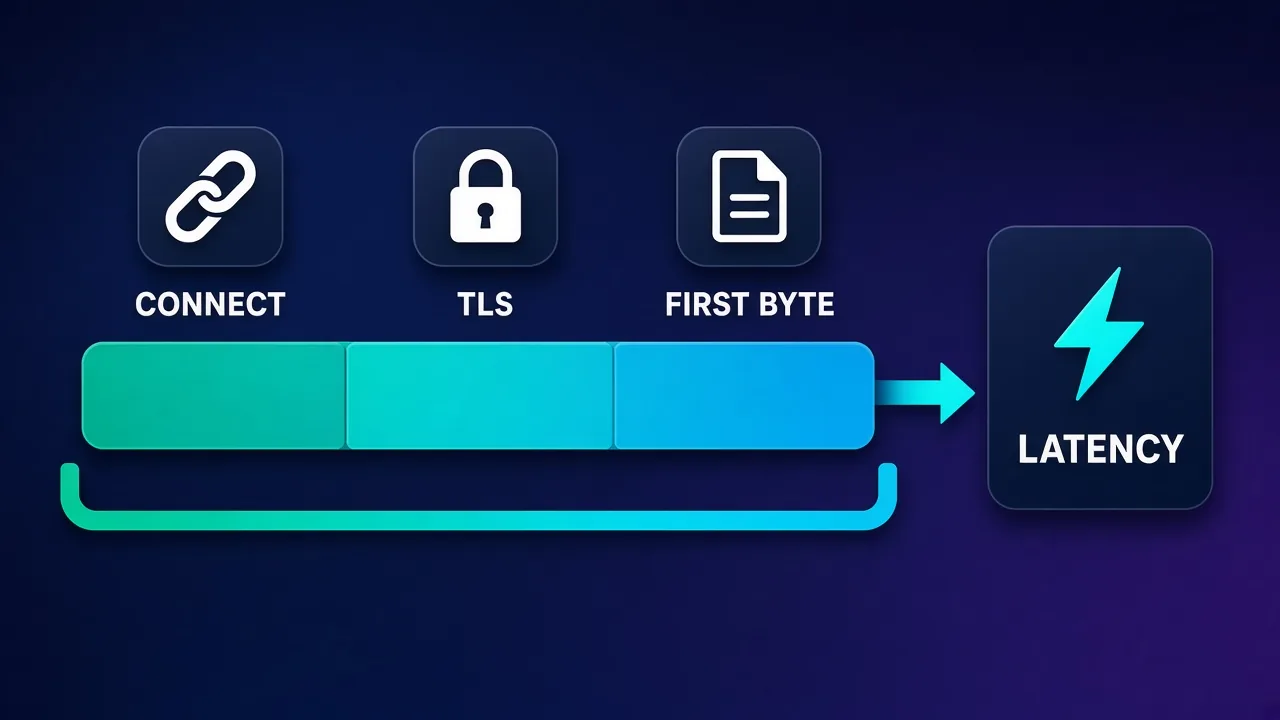
"Fast" means different things for different jobs, so measure the parts separately. curl can break a request down into phases with its -w option:
curl -x http://USERNAME:PASSWORD@PROXY_HOST:PORT -o /dev/null -s \
  -w "connect: %{time_connect}s\ntls: %{time_appconnect}s\nfirst byte: %{time_starttransfer}s\ntotal: %{time_total}s\n" \
  https://example.com
Here's how to read the output:
- connect is the time to open a TCP connection to the proxy. High values point to distance or congestion between you and the proxy server.
- tls is when the TLS handshake with the target finished. A big gap after connect suggests a slow path between the proxy and the target.
- first byte is when the first byte of the response arrived. This includes the target's own processing time.
- total is the full request, including download.
One request tells you very little, because residential and mobile proxies in particular vary from request to request. Run at least 20 to 50 requests and look at the median and the slowest results, not just the average. Here's a small Python script that does that:
import statistics, time
import requests

PROXY = "http://USERNAME:PASSWORD@PROXY_HOST:PORT"
proxies = {"http": PROXY, "https": PROXY}
times, failures = [], 0

for _ in range(30):
    start = time.perf_counter()
    try:
        r = requests.get("https://example.com", proxies=proxies, timeout=15)
        r.raise_for_status()
        times.append(time.perf_counter() - start)
    except requests.RequestException:
        failures += 1

if times:
    times.sort()
    print(f"ok: {len(times)}  failed: {failures}")
    print(f"median: {statistics.median(times):.2f}s")
    print(f"p90: {times[int(len(times) * 0.9) - 1]:.2f}s")
    print(f"max: {times[-1]:.2f}s")
If you're new to routing Python traffic through proxies, our guide on using proxies with Python Requests covers authentication, SOCKS and retries in more detail.
Test against your real target
Speed to a neutral test page is a useful baseline, but what matters is speed and success rate on the site you actually plan to use. Repeat the timing test against your real target, within its terms of use and at a gentle request rate.
Step 3: Check anonymity and headers
An anonymous proxy should show the target its own IP and nothing that points back to you. Some proxies, particularly misconfigured or free ones, add headers that reveal your original IP or announce that a proxy is in use. You can see exactly what a server receives with an echo service:
curl -x http://USERNAME:PASSWORD@PROXY_HOST:PORT https://httpbin.org/headers
curl -x http://USERNAME:PASSWORD@PROXY_HOST:PORT https://httpbin.org/ip
Look for these headers in the response:
X-Forwarded-FororForwarded: if either contains your real IP, the proxy is transparent and offers no anonymity.Via: announces that a proxy handled the request. Not a leak of your IP, but it tells the target you're using a proxy.X-Real-IPor similar: another way some proxies pass along the original address.
Keep in mind that some echo services sit behind their own infrastructure and add forwarding headers themselves. If you see a header you don't expect, compare the result with and without the proxy before drawing conclusions.
Anonymity also includes IP type. A target can often tell whether an address belongs to a datacenter, a home broadband network or a mobile carrier by looking up who owns it. Use an IP information service to see the owning organisation and network type, and confirm it matches what you paid for.
Step 4: Run DNS and WebRTC leak checks
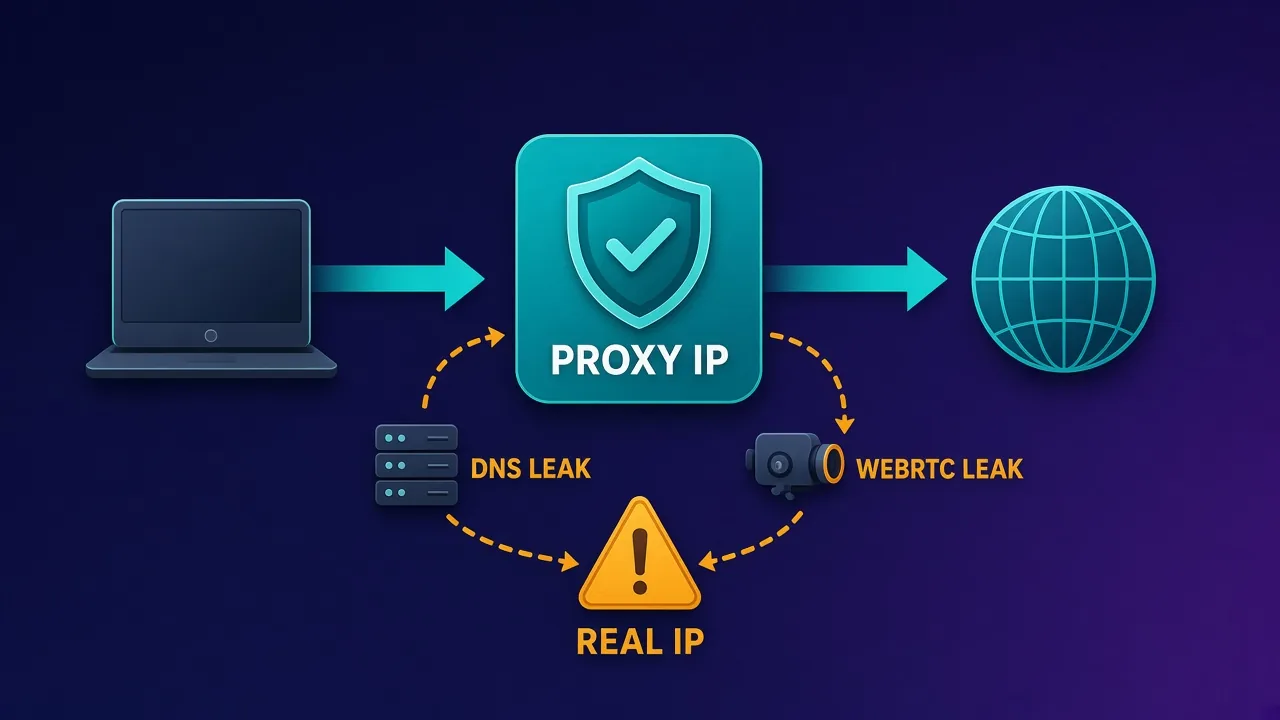
Leaks are the most dangerous failure, because everything can look fine while your real identity escapes through a side channel. The two common ones are DNS and WebRTC.
DNS leaks
A DNS leak happens when your device resolves domain names through your own ISP's resolver instead of through the proxy. The target won't necessarily see it, but your ISP's resolver shows up in leak tests, revealing your real network and location. In code, avoid this by letting the proxy resolve names: use socks5h:// rather than socks5:// in curl and Python. In a browser, open a DNS leak test page with the proxy active and check that the listed resolvers are not your ISP's.
WebRTC leaks
WebRTC is the browser technology behind video calls, and it can discover your local and public IP addresses independently of your proxy settings. With the proxy configured in your browser or antidetect profile, open a WebRTC leak test page. If it shows your real public IP, you need to disable WebRTC, restrict it, or use your antidetect browser's WebRTC setting to replace the address with the proxy's.
Leaks beat good IPs
A perfect proxy IP is worthless if WebRTC or DNS reveals your real address. Run leak checks in the exact browser profile or script you'll use in production, not a different one.
Step 5: Verify geo accuracy
If you pay for a specific country, city or carrier, check that you're actually getting it. Look the exit IP up in more than one geolocation database, because they don't always agree:
IP=$(curl -s -x http://USERNAME:PASSWORD@PROXY_HOST:PORT https://api.ipify.org)
curl -s "https://ipinfo.io/$IP/json"
Compare the reported country, region, city and organisation against what you ordered. Country-level results are usually reliable; city-level results vary between databases, so treat a small disagreement as normal and a different country as a real problem. Also check what the target itself sees: many sites reveal the detected location through currency, language or a store selector. Our explainer on geo-targeting in proxies explains why databases disagree and how providers assign locations.
Step 6: Test IP reputation and success rate
An IP can be fast, anonymous and correctly located but still be blocked because of its history. The practical test is success rate on your target: send a realistic batch of requests and count the responses that are real pages versus blocks, CAPTCHAs or error codes. Record status codes and look for signs of challenges in the response body. For rotating pools, run the test across many IPs so one bad address doesn't skew the result. Comparing success rates between providers on the same target is one of the most honest ways to judge quality, alongside the trust factors in our guide to what makes a proxy provider trustworthy.
Testing rotating vs sticky proxies
Rotating and sticky proxies need slightly different tests.
- Rotating: send several requests in a row and confirm the IP changes as expected. Count how many unique IPs you get in, say, 50 requests. A pool that keeps returning the same few addresses is smaller than advertised or poorly balanced.
- Sticky: confirm the IP stays the same for the promised session length. Check the IP every minute or so and note when it changes. If it rotates early, logged-in workflows will break.
import time
import requests

PROXY = "http://USERNAME:PASSWORD@PROXY_HOST:PORT"
proxies = {"http": PROXY, "https": PROXY}
seen = []

for _ in range(10):
    ip = requests.get("https://api.ipify.org", proxies=proxies, timeout=15).text
    seen.append(ip)
    time.sleep(60)

print(f"unique IPs over 10 minutes: {len(set(seen))}")
print(seen)
Turn it into a repeatable checklist
Once you've run these steps by hand, wrap them in a short script or checklist and run it every time you evaluate a provider or receive new IPs. A practical routine looks like this:
- Confirm the exit IP differs from your own.
- Run 30 timed requests and record median, p90 and failure count.
- Check headers for
X-Forwarded-For,ForwardedandVia. - Look up IP type and owning network.
- Run DNS and WebRTC leak tests in your production browser profile.
- Verify country and city in two geolocation databases.
- Measure success rate on your real target with a realistic batch.
- For rotating or sticky products, verify rotation behaviour.
Save the results with the date, provider and product. Over time you'll build a record that shows which providers hold up and which degrade.
How often to retest your proxies
Proxy quality isn't fixed. Residential and mobile pools change constantly as devices join and leave, datacenter ranges get flagged by new targets, and providers adjust routing. A proxy that passed every check last month can quietly degrade. A sensible cadence is to run the full checklist whenever you onboard a new provider, product or batch of dedicated IPs, then run a lighter version, covering connectivity, timing and success rate on your main target, on a regular schedule such as weekly.
Retest immediately when something changes: a sudden rise in CAPTCHAs or error codes, slower jobs, accounts hitting security checks, or a provider announcing network changes. Comparing the new results with your saved baseline tells you quickly whether the problem is the proxy, the target tightening its defences, or something in your own setup. Keeping that history also gives you concrete evidence if you need to raise a support ticket or ask for replacement IPs, which tends to get a faster, more useful response than a vague complaint.
Common testing mistakes
- Testing once. A single request says almost nothing about a rotating pool. Use batches.
- Testing only against neutral pages. A proxy that loads a test page quickly may still fail on your actual target.
- Leak testing in the wrong environment. Results from your everyday browser don't reflect your antidetect profile or script.
- Trusting a single geolocation database. Cross-check before blaming the provider.
- Hammering the target. Aggressive tests can get IPs flagged and may breach the site's terms. Keep request rates realistic.
- Forgetting your own network. Slow results can come from your connection, not the proxy. Run a baseline without the proxy first.
The bottom line
Testing a proxy properly comes down to four checks: does it connect quickly and consistently, does it hide your identity, does anything leak around it, and is it really where it claims to be. Add a success-rate test on your real target and you have a complete picture. Run the same routine every time, record the results, and you'll stop guessing about proxy quality and start comparing it.
Frequently asked questions
Send a request through the proxy to an IP echo service, for example with curl and the -x option, and check that the returned IP is not your own. If you get your real IP, the proxy isn't being used, and an error such as 407 usually points to wrong credentials or a missing IP whitelist.
Use curl's -w option to measure connect time, TLS handshake time, time to first byte and total time, then repeat the request 20 to 50 times. Look at the median and the slowest results rather than a single measurement, since proxy speed varies between requests.
Request a header echo page through the proxy and look for X-Forwarded-For, Forwarded or X-Real-IP containing your real IP, which means the proxy is transparent. A Via header doesn't expose your IP but does reveal that a proxy is in use.
A DNS leak happens when your device resolves domain names through your own ISP's DNS servers instead of through the proxy, revealing your real network. Using socks5h in curl and Python lets the proxy resolve hostnames, and a DNS leak test page will show which resolvers are being used.
WebRTC is a browser feature for real-time communication that can discover your public IP regardless of proxy settings. Test with a WebRTC leak page in your actual browser profile, and if your real IP appears, disable or restrict WebRTC or use your antidetect browser's setting to replace it with the proxy IP.
Look up the exit IP in at least two IP geolocation databases and compare the country, city and owning network with what you ordered. Country-level results are usually consistent, while city-level results often differ slightly between databases.
Send a series of requests and count how many unique IPs you receive. For sticky sessions, check the IP every minute or so and confirm it stays the same for the promised session length.
Run a full test whenever you start with a new provider, product or batch of IPs, and a lighter check of connectivity, speed and success rate on a regular schedule such as weekly. Retest immediately if you notice more CAPTCHAs, errors or slower jobs.