Table of contents
A VPN is one of the simplest, most effective privacy tools you can use — and getting started takes about five minutes. But "how to use a VPN" covers more than just tapping Connect: choosing the right provider, setting it up on each of your devices, turning on the settings that actually protect you, and confirming it's working. This guide walks you through all of it, step by step, in plain language — whether you're on Windows, Mac, a phone, or your whole home network.
What a VPN actually does (quick version)
Before the how-to, it helps to know what you're switching on. A VPN — Virtual Private Network — does two things at once. First, it wraps your internet traffic in an encrypted tunnel between your device and a VPN server, so nobody on your network (your ISP, a café's Wi-Fi, a snooping admin) can read what you're doing. Second, it replaces your real IP address with the server's, so the websites you visit see the VPN's location instead of yours.
That's the whole idea: your traffic becomes unreadable in transit, and your apparent location becomes the server's. Everything below is just how to turn that on and use it well.

Step 1: Choose a trustworthy VPN
The single most important decision is which VPN, because you're routing all your traffic through it — so the provider's trustworthiness matters more than any feature. Look for a strict, ideally audited no-logs policy, modern protocols (WireGuard/OpenVPN), a kill switch, servers where you need them, and a clear privacy jurisdiction. Paid services are almost always the right call here.
Be careful with "free" VPNs
Running a global server network costs money. If you're not paying, the service may monetise in ways that undermine the whole point — logging activity, injecting ads, or throttling you. A reputable free tier (with clear limits) can be fine for light use, but avoid unknown, ad-driven free VPNs for anything sensitive.
Step 2: Sign up and install the app
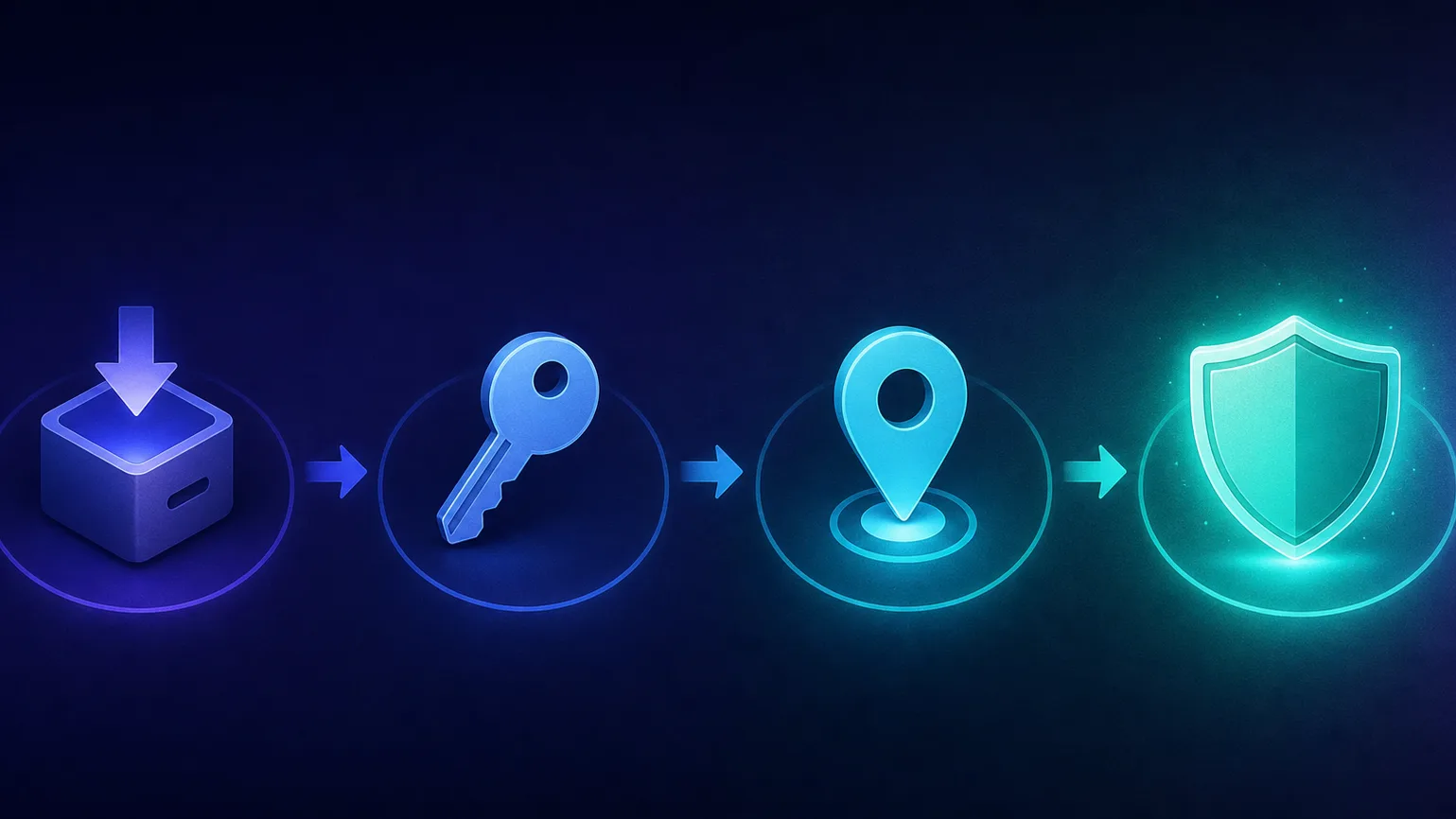
Once you've picked a provider, the process is the same everywhere:
- Create an account on the provider's website and choose a plan (longer plans are cheaper per month, but start short if you're unsure).
- Download the official app for your device — from the provider's site or your device's app store. Only use the official app; fake VPN apps exist.
- Install and log in with your new credentials.
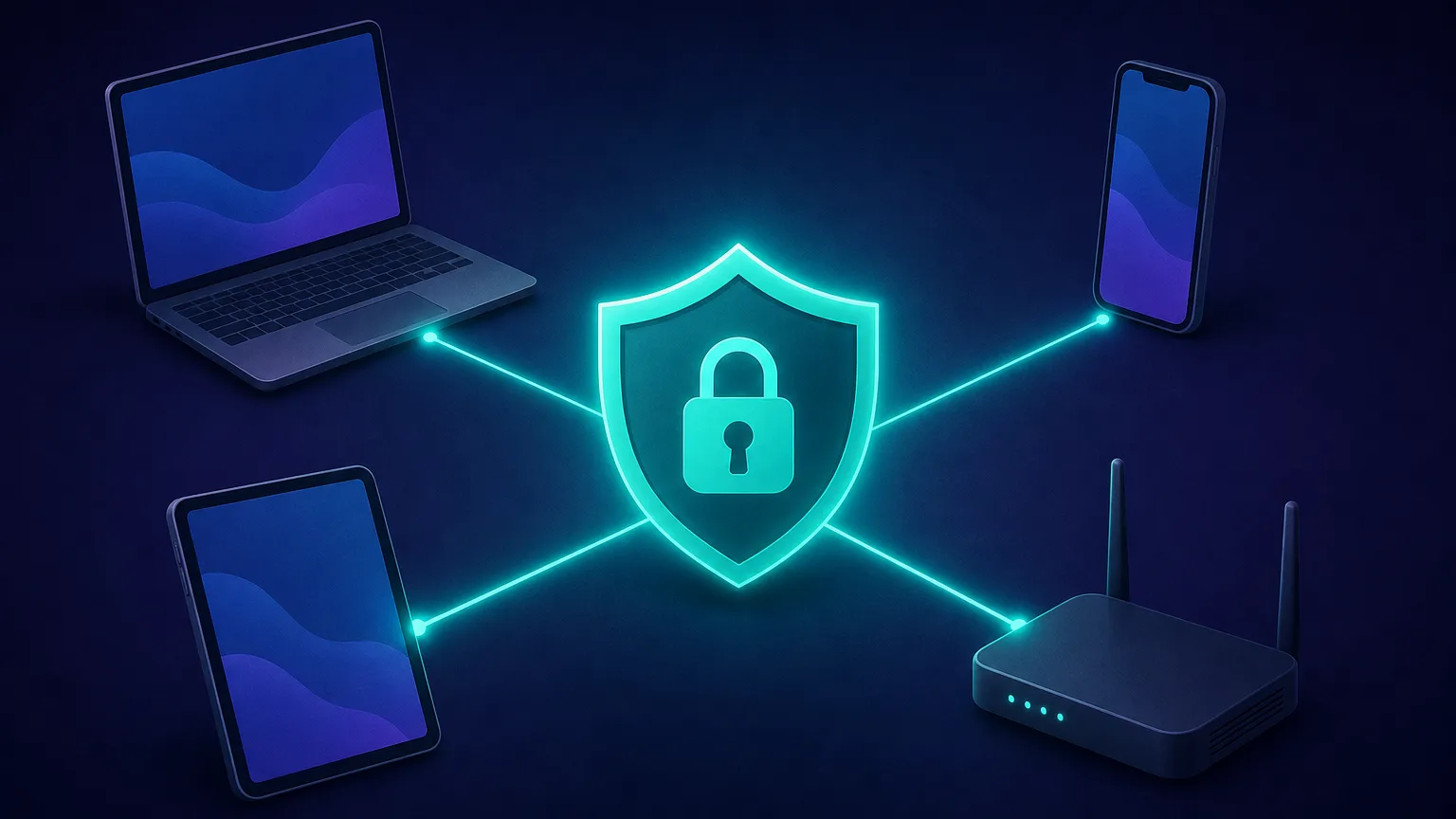
Most VPNs let you run one account on many devices at once (a set number of simultaneous connections), so one subscription usually covers your laptop, phone, and tablet together.
Step 3: Connect to a server
This is the part people mean by "using" a VPN:
- Quick connect: tap the big Connect button and the app picks the fastest nearby server. This is what you want for everyday privacy and security — a close server means the least speed loss.
- Choose a location: pick a specific country from the list when you need to appear somewhere else (for travel, or region-specific content). The further away the server, the more speed you typically sacrifice.
When the app shows "Connected," your traffic is now tunnelled. That's genuinely it — everything else is refinement.
Step 4: Turn on the settings that matter
Out of the box a VPN protects you, but a few settings make it meaningfully better. You'll find these in the app's settings/preferences:
| Setting | What it does | Recommendation |
|---|---|---|
| Kill switch | Cuts your internet if the VPN drops, so nothing leaks unprotected | Turn on |
| Protocol | The tunnelling method (WireGuard, OpenVPN, IKEv2) | WireGuard for speed; OpenVPN if you hit issues |
| Auto-connect | Connects automatically on startup or on untrusted Wi-Fi | Turn on, especially for laptops/phones |
| DNS leak protection | Ensures DNS lookups go through the tunnel, not your ISP | Turn on (usually on by default) |
| Split tunneling | Lets chosen apps bypass the VPN | Optional — handy for local devices/banking apps |
The kill switch is the one to never skip
Without it, a momentary VPN drop silently exposes your real IP and traffic — often exactly when you least expect it. Turning the kill switch on is the single highest-value setting for real protection.
Step 5: Verify your VPN is actually working
Never just assume — confirm. After connecting, check that your IP has changed and that you're not leaking DNS. The quickest check is to look up your public IP before and after connecting; it should switch from your real one to the VPN server's:
# Check your public IP — run once before connecting, once after
curl https://api.ipify.org

# Before VPN: your real ISP address
# After VPN:  the VPN server's address (should be different)
Then visit any reputable "DNS leak test" or "what is my IP" page in your browser and confirm the country matches your chosen server and no DNS servers from your real ISP show up. If your real IP or ISP leaks through, enable DNS leak protection and the kill switch, or switch protocols.
How to use a VPN on each device
The concept is identical everywhere; only the app differs:
- Windows / macOS: install the desktop app, log in, connect. Enable auto-connect and the kill switch in settings.
- iOS / Android: install from the App Store/Play Store, allow the VPN configuration prompt, connect. Turn on "connect on untrusted networks." For platform-specific picks, see our guide to the best VPNs for iOS & macOS.
- Browser extension: lightweight and quick, but it only protects that browser's traffic — not your whole device. Use it for casual browsing, the full app for real protection.
- Router: installing a VPN on your router protects every device on your network at once (great for smart TVs and consoles that can't run VPN apps). Setup is more involved and speeds are shared, but coverage is total.
What you can use a VPN for
- Safety on public Wi-Fi. Cafés, airports and hotels are the classic case — encryption stops anyone on the same network from snooping.
- Privacy from your ISP. Your provider can see and log the sites you visit; a VPN hides that traffic from them.
- Access while travelling. Connect back to your home country to use services and content as you normally would abroad.
- Streaming. Watch region-specific libraries by choosing a server in that country — see our best VPNs for Netflix guide.
- Gaming. Sometimes for lower routing latency or to play on other regions — covered in best VPNs for gaming.
VPN protocols, briefly
You'll see a "protocol" setting; here's what to pick without overthinking it:
| Protocol | Strength | Best for |
|---|---|---|
| WireGuard | Fast, modern, efficient | Default choice for most people |
| OpenVPN | Proven, highly compatible | Reliability, restrictive networks |
| IKEv2/IPsec | Reconnects quickly | Mobile — switching Wi-Fi/data |
When in doubt, leave it on the app's default (usually WireGuard or the provider's own WireGuard-based protocol) and only change it if you hit connection problems.
Common mistakes and quick fixes
- Slow speeds? Connect to a closer server, switch to WireGuard, or try a different server in the same country.
- Can't connect at all? Switch protocols (OpenVPN often gets through restrictive networks), change servers, or check that the app is up to date.
- Site still blocks you? The server's IP may be flagged — pick a different server. A VPN improves access but nothing bypasses every block.
- Forgot to turn it on? Enable auto-connect so protection isn't left to memory.
A VPN is not total anonymity
A VPN hides your traffic from your network and your IP from sites — but you're still logged into your accounts, still fingerprintable by your browser, and still trusting the VPN provider. It's a strong privacy layer, not an invisibility cloak, and it doesn't make illegal activity legal. Use it for what it's good at.
Best VPNs to start with
If you just want a reliable, beginner-friendly VPN with polished apps on every platform, these three are consistently easy to set up and use:
NordVPN — polished all-rounder
Fast WireGuard-based protocol, a clear kill switch, and one of the easiest apps for newcomers across every device.

NordVPN
Still the benchmark. NordVPN combines top-tier speeds, a repeatedly audited no-logs policy, and the broadest feature set in the industry at a mid-range price. The default recommendation for most people.
ExpressVPN — simple and dependable
Known for a straightforward, no-fuss app and reliable connections, a good pick if you want it to "just work."

ExpressVPN
The most reliable VPN we have tested — connections just work, on every platform including routers. You pay a premium for that polish, and power users may miss the configurability rivals offer.
Surfshark — budget-friendly, unlimited devices
Allows unlimited simultaneous connections, so it's ideal for covering a whole household on one plan.

Surfshark
The value king. Unlimited connections, strong speeds, and a feature set close to NordVPN at roughly half the intro price. The 14-eyes Netherlands jurisdiction is the main caveat for hardliners.
How to choose the right server
Which server you connect to changes your experience, so pick with intent:
- For everyday privacy and speed, choose the nearest server (or just use Quick Connect). Less distance means less latency and faster speeds while still encrypting everything.
- To appear in another country, pick a server in that specific location — for travel, region-specific services, or content libraries.
- For specialised needs, many providers offer specialty servers: obfuscated servers that disguise VPN use on restrictive networks, P2P servers optimised for file sharing, and double-VPN servers that route through two locations for extra privacy at the cost of speed.
If a particular server is slow or blocked, simply switch to another in the same country — server load varies, and a fresh IP often fixes both speed and access problems.
VPN vs proxy: which do you need?
People often confuse the two. A VPN encrypts all of your device's traffic and is built for privacy and security across everything you do. A proxy typically routes a single app or browser's traffic through a different IP, often without encryption, and is favoured for tasks like scraping, multi-accounting, or fine-grained location control. For personal privacy on public Wi-Fi and general browsing, a VPN is the right tool. For data collection or managing many location-specific identities, proxies are usually the better fit — see our overview of the types of proxies and the wider proxy directory. Some advanced users combine both.
How much does a VPN cost?
Pricing varies, so check current figures on the cards above rather than any number quoted here. The consistent pattern is that monthly plans are the most expensive per month, while one- or two-year plans drop the effective price substantially — which is why providers push long commitments. A sensible approach is to start on a short plan (or use a money-back guarantee window) to confirm the service fits your speeds and needs, then switch to a longer term once you're happy. Reputable free tiers exist for light use, but for always-on protection a modest paid plan is well worth it.
VPN do''s and don''ts
A quick reference once you''re up and running:
- Do turn on the kill switch and auto-connect so you''re never accidentally exposed.
- Do keep the app updated — protocol and security fixes ship regularly.
- Do verify your IP and DNS after connecting, especially on a new network.
- Do use a nearby server for everyday use and save distant ones for when you specifically need that location.
- Don''t rely on an unknown free VPN for anything sensitive.
- Don''t assume a browser extension protects your whole device — it doesn''t.
- Don''t treat a VPN as a licence for risky behaviour; it''s privacy, not immunity, and not anonymity.
- Don''t forget devices that can''t run apps — cover them by installing the VPN on your router.
Follow these and your VPN quietly does its job in the background, protecting every connection without getting in your way.
The bottom line
Using a VPN comes down to five easy steps: choose a trustworthy provider, install the official app, connect to a server, switch on the kill switch and auto-connect, and verify your IP actually changed. Do that and you've added a strong, always-on layer of privacy and security to every network you touch — public Wi-Fi included. Start with a nearby server for everyday use, pick specific countries when you need them, keep the app updated, and remember what a VPN is and isn't: a powerful privacy tool, not total anonymity. Set it up once, turn on auto-connect, and you'll barely think about it again.
Frequently asked questions
Sign up with a trustworthy VPN provider, download their official app for your device, log in, and tap Connect to join a nearby server. Then turn on the kill switch and auto-connect in settings, and verify your IP address changed. The whole process takes about five minutes.
In most countries VPNs are completely legal and widely used for privacy and security. A few countries restrict or ban them, so check local law if you're travelling. Note that a VPN doesn't make otherwise-illegal activity legal — it's a privacy tool, not a loophole.
For privacy and security it's best to leave it on, especially on public Wi-Fi and untrusted networks. Enabling auto-connect means you never forget. You can turn it off for tasks that need your real location or that a VPN slows down, like local network devices or some banking apps.
Some slowdown is normal because your traffic is encrypted and routed through a server, but with a nearby server and a modern protocol like WireGuard the difference is usually small. Connecting to distant servers costs more speed. If it's slow, switch to a closer server or change protocols.
Check your public IP address before and after connecting — it should change to the VPN server's. Then use a 'what is my IP' or DNS leak test page to confirm the country matches your chosen server and your real ISP isn't leaking. If your real IP shows, enable the kill switch and DNS leak protection.
Usually yes. Most VPNs allow a set number of simultaneous connections per account (and some, like Surfshark, allow unlimited), so one subscription covers your laptop, phone and tablet. Installing it on your router protects every device on your network at once, including ones that can't run VPN apps.
A VPN app protects all the traffic on your device; a browser extension only protects that one browser's traffic. Extensions are lighter and quick for casual browsing, but for real, whole-device protection use the full app. Don't assume an extension is securing everything on your computer.
No. A VPN hides your traffic from your network and your IP from websites, but you're still logged into accounts, still fingerprintable by your browser, and still trusting the VPN provider not to log you. It's a strong privacy layer, not complete anonymity — pair it with good browser hygiene for more.